Planning a custom Bizzy–DocuSign routing workflow
By Leandro Faria · · Updated · 11 min read
Disclosure: Bizzy is built by 33Labs, the publisher of this guide.

This is a requirements checklist for a possible custom Bizzy–DocuSign routing workflow, not a verified connector tutorial. It helps a contract administrator specify document versions, recipients, permission to send, and completion handling before commissioning an implementation. No native Bizzy–DocuSign connection is established here.
Bizzy’s standard service covers front-office administration: inquiry follow-up, routine scheduling, and reminders from approved administrative details. It does not include access to financial or privileged documents, substantive legal drafting, or custom integrations. Any proposed work beyond that boundary needs a separately agreed scope, verified technical support, and an approved data-handling arrangement; a case study is not evidence that it is included for every customer.
- This planning guide scopes a possible custom routing workflow; it does not provide verified Bizzy connector steps.
- Custom DocuSign routing is outside standard Bizzy front-office administration and must be separately agreed.
- Confirm connection permissions before setup, then test recipients, signing order, and completion handling.
- Keep human approval before sending and stop routing whenever the approved document changes.
Why this matters
Contract routing is more than getting a signature. Someone must identify the right document, check the recipients, confirm authority to sign, and put the completed record where the team expects it. Automating the send without those checks moves mistakes faster.
Bizzy provides an AI colleague for professional service teams working across existing tools. Custom DocuSign routing is outside standard Bizzy front-office administration and must be separately agreed. For contract routing, give that colleague a defined job: prepare the handoff, follow the agreed rules, and send exceptions to a person.
Your 2026 routing plan should answer a practical question: what exactly gives this contract permission to leave the firm? A document appearing in a folder is not the same as approval. Neither is an email that merely mentions a client.
Before you start
- Accounts and access: Have an authorized DocuSign account owner and the person responsible for your Bizzy implementation confirm the connection method, permitted actions, and access to the source documents. Confirm whether the connection supports drafting envelopes, sending them, and receiving status changes before designing around those actions.
- Materials and ownership: Choose 1 contract type for the first workflow. Bring an approved example, recipient roles, the filing destination, and the name of the person who approves sending. Use test documents without confidential client information during setup.
- The gotcha: Approval must apply to a specific document version and recipient list. A revised attachment or changed signer invalidates the previous approval. Build that stop into the workflow before connecting automatic sending.
Choose the narrowest useful starting point. One repeatable engagement-letter process is easier to define than every document your firm signs. Expand only after the first route passes its checks.
Specify requirements for a proposed contract-routing workflow
Contract intake
- Define the starting event. Choose an explicit action that means ready for review: a designated intake submission, an approved task status, or a document placed in a controlled location. Use an event your confirmed connection can actually receive. Do not treat every new attachment as a contract request.
- Identify the source document. Specify where the workflow finds the file and how it identifies the current version. Record the source reference alongside the routing request so a reviewer can trace the attachment back to its origin.
- Write down the required information. Include the contract owner, client or matter reference, document version, signer names, signer email addresses, recipient roles, signing order, and filing destination. These are your workflow requirements, not assumed field names in a particular interface.
- Reject incomplete requests. Route missing documents, blank signer addresses, and unidentified owners back to the responsible person. An incomplete request should remain unsent rather than becoming a guessed recipient or an improvised contract.
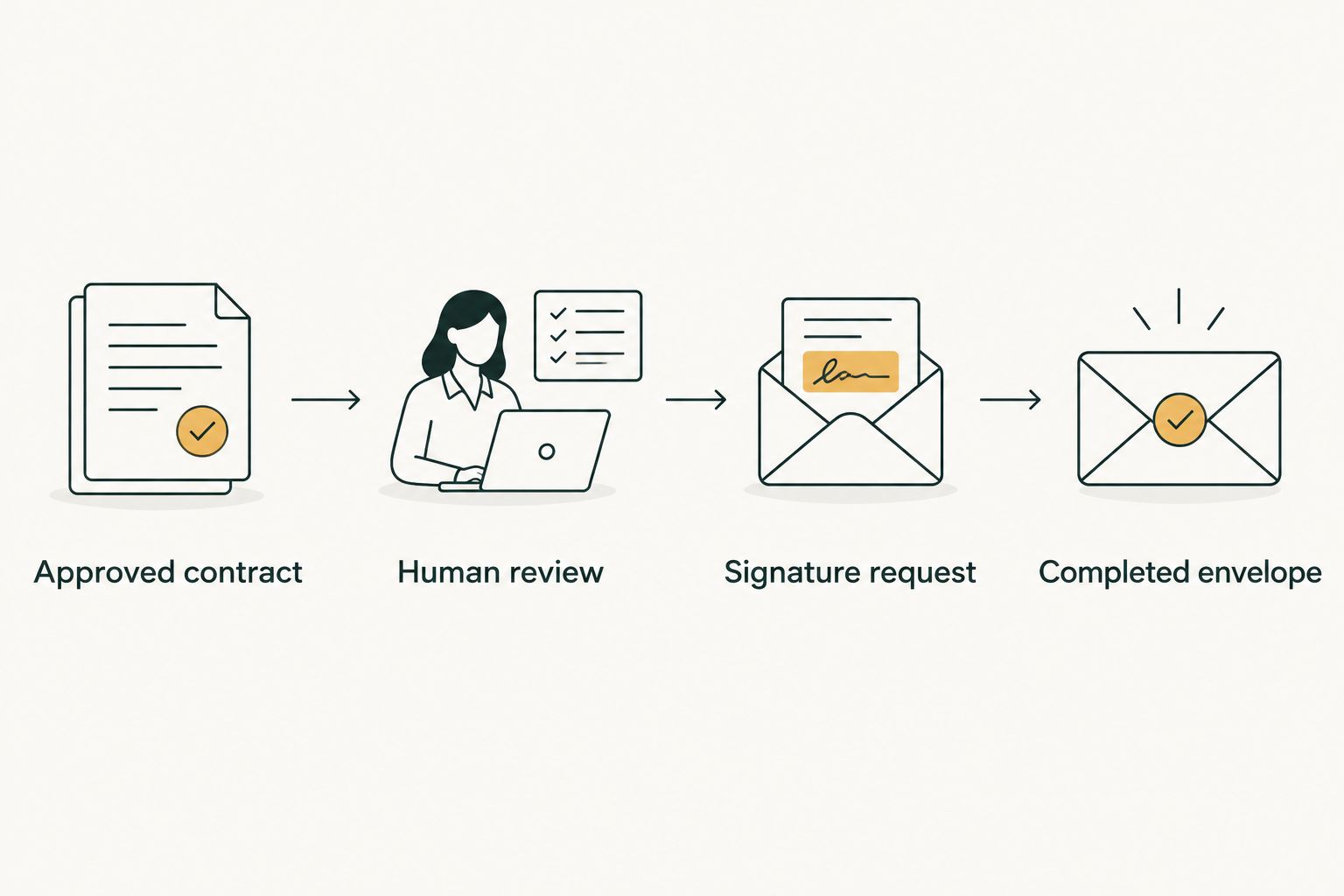
- Define the checkpoints. Use these plain-language stages in your routing plan: Approved contract, Human review, Signature request, and Completed envelope. Specify who owns each handoff and what evidence allows the next stage to begin.
Expected result: A routing request contains the document reference, the people involved, and the information needed to prepare an envelope. Nothing has been sent for signature.
Keep intake separate from interpretation. The workflow can carry a client's name from an approved record, but the person responsible for the matter decides whether that client belongs on the agreement. Reading a document is not permission to change its parties.
The handoff below shows the intended sequence. Human review remains between the approved document and the outgoing signature request.
Recipient and signing-order requirements
- Assign each recipient a role. Distinguish people who must sign from people who only need a copy. Start from the approved routing request, not from whoever appeared on the latest email thread.
- Check names and addresses. Have the reviewer confirm each email address against an authorized client or matter record. Do not infer a signer from a similar name or a familiar email domain. Record the reviewed recipient list with the document version.
- Specify the signing sequence. Record which recipients may act together and which must wait for an earlier action. Ask the implementation lead to demonstrate that sequence in the current account; these are acceptance requirements, not connector settings.
- Place the required fields. Assign signature, date, and other necessary fields to the correct recipient. If you use a template, inspect its roles and document fields before relying on it for this contract type. A template does not remove the need to check the parties.
- Review the outgoing message. Make the subject and message identify the agreement without exposing unnecessary client or matter details. Keep instructions specific: what the recipient is being asked to sign and whom to contact with questions.
Expected result: The prepared envelope contains the intended document, the correct recipient roles, and the required signing sequence. The envelope is still waiting for authorization to send.
For your 2026 setup, document signing order in ordinary language as well as configuration. For example, internal approval precedes the external signature request. That sentence lets a colleague check the route without needing to understand the connection itself.
Approval and sending permission
- Name the approver. Choose a person with authority to approve this contract route. Specify a backup and an escalation path. Approval should not default to whoever happens to be online.
- Present the whole send decision. Give the approver the document version, recipient list, signing order, and outgoing message together. Reviewing only the document leaves routing errors outside the approval process.
- Require an explicit decision. Add 1 approval gate before sending. Approval must identify the document and recipients it covers. Silence, an unopened notification, or a general instruction to handle contracts does not count.
- Invalidate approval after changes. Return the request to review if the attachment, recipient list, signing order, or relevant terms change. Preserve the previous decision as a record, but do not reuse it as authorization for the revised request.
- Release the envelope. If the confirmed connection supports sending, allow it only after the approval conditions pass. If sending remains manual, the authorized sender reviews the prepared envelope and selects Send in DocuSign. Keep this fallback in the written process.
Expected result: Every sent envelope has an identifiable approval tied to its document and routing details. Requests without that approval stay held.
Start your 2026 rollout with human-reviewed sending. This adds a handoff, but it makes routing mistakes visible before they reach a client. Broader automation belongs after your team has verified the rules—not before.
Completion and record filing
- Choose the status source. Confirm how the implementation receives DocuSign envelope updates. Use the supported connection's status notifications or an approved status-checking method. Do not use an email subject alone as evidence that signing is complete.
- Track the envelope identifier. Store it with the original routing request. Before retrying a send after a connection error, check whether an envelope already exists for that request.
- Separate completion from delivery. Treat a sent envelope as awaiting action. File the final signed record only after DocuSign reports completion. A viewed document or a delivered email does not establish that every required recipient has finished.
- Define the filing package. Specify the completed agreement and the associated completion record your firm's policy requires. Choose the authorized client or matter location, naming convention, and people allowed to access it.
- Test the route before release. Run 3 test envelopes: the normal route, a request with missing information, and a request changed after approval. Inspect the approval record, outgoing recipients, status handling, and filing result for each applicable route.
Expected result: A completed envelope leads to the intended filing action and owner notification. Incomplete, declined, or otherwise stopped envelopes remain distinguishable from completed agreements.
Record the test results in your 2026 implementation notes. A test is not successful merely because a signature request arrived. The process must also refuse an invalid request and preserve the right record when the valid request finishes.
Route revised contracts through a fresh approval
The adjacent workflow starts when an already-reviewed contract changes. A changed contract needs a new approval decision, not an automatic resend. This applies whether someone replaces the attachment, corrects a signer, or changes the signing sequence.
Choose the route according to the work involved:
| Workflow | Best for | Advantage | Limitation |
|---|---|---|---|
| Human-reviewed send | First rollout or exception-heavy contracts | A person checks the final handoff | Requires a person to release each envelope |
| Approval-gated routing | Repeatable contracts with defined recipients | Separates preparation from sending authority | Depends on accurate approval and recipient records |
| Revised-contract review | Changed documents or routing details | Prevents reuse of outdated approval | Adds another review before sending |
For a revised contract, link the new request to the earlier request and identify what changed. Pause any pending action that would send the old version. If an envelope has already been sent, have its owner review the current DocuSign status and choose the appropriate correction or cancellation action before proceeding.
Do not automatically create a replacement envelope simply because a new file appeared. The owner must decide whether the change affects an active signature request, an already-completed agreement, or a draft that never left the firm. Those are different decisions.
Troubleshooting
The same contract produces duplicate envelopes
Check whether a retry repeated the send after the first attempt succeeded. Also inspect whether multiple intake events pointed to the same approved request. Match the request to its stored envelope identifier before permitting another send; have the owner resolve any existing duplicates.
The wrong person receives the signature request
Inspect the approved recipient list and any template role mapping. Correct the source record, not just the outgoing envelope. If the envelope has already been sent, stop further automatic action and have the authorized sender handle the correction in DocuSign.
A revised document bypasses review
Check what the approval record identifies. An approval attached only to a client name or folder does not establish which document was reviewed. Require the version and recipient list to match, then return changed requests to the approval gate.
A declined envelope looks like completed work
Separate exception handling from successful completion. A declined or voided envelope should notify the responsible owner and should not trigger filing as a signed agreement. Check the actual envelope status rather than interpreting a notification as a successful finish.
The completed agreement lands in the wrong place
Inspect the client or matter reference used for filing. Require a confirmed destination before sending, and stop the filing action when that reference is missing or ambiguous. Do not let a guessed folder become the permanent contract record.
Customize your workflow
If a separately scoped custom implementation is supported, begin with a narrow routing assignment. Start with intake preparation and reviewer follow-ups, then add sending or filing only where the confirmed connection and your firm's rules support those actions.
For a 2026 expansion plan, change one responsibility at a time. Add another contract type only after defining its parties, approval owner, exceptions, and record destination. Reusing a working connection does not make a new contract process approved.
Keep the trade-off explicit: Bizzy's role is day-to-day workflow assistance, not authority to approve legal or commercial terms. Connecting existing tools does not replace your firm's decisions about confidentiality, access, signing authority, or retention.
Define your first contract workflow
Start with the contract type, approval owner, and handoffs your team wants to automate.
FAQ
What must be verified before custom Bizzy–DocuSign routing?
Agree a separate custom scope and require a demonstration of authorized access, recipient handling, approval enforcement and completion handling. This article does not establish a native connector or provide product setup instructions.
What should DocuSign AI automation handle first?
Start with preparing a routing request for one repeatable contract type. Keep the document, recipients, and signing order subject to human review before allowing automatic sending.
Can I send contracts automatically without human approval?
Keep human approval before sending in this workflow. Contract approval and permission to send are separate decisions, and both must cover the current document and recipients.
How should I specify recipient order?
Write down who may act together and who must wait. Have the implementation lead demonstrate the required sequence in your account and verify that a changed recipient list returns to review.
What happens when a contract changes after approval?
Return the changed contract to review before sending. The new approval must cover the revised document, recipient list, and signing sequence.
How do I prevent duplicate DocuSign envelopes?
Store the envelope identifier with the routing request and check it before retrying a send. A connection error does not establish that the original send failed.
Does a sent DocuSign envelope mean the contract is complete?
No. Sending starts the signature request; completion requires the envelope to reach completed status. Keep delivery, signing progress, and final filing as separate events.
One last thing
Write the stop rule before the send rule. Decide who receives the request when the document is wrong, the signer is uncertain, or approval no longer matches. Then test that handoff deliberately.
A useful contract workflow does not just move good requests forward. It gives incomplete and changed requests a clear place to stop—and a named person who can resolve them.
Sources and scope
DocuSign’s envelope reference is the vendor’s API reference for envelope creation and management. Envelope status guidance distinguishes completion from earlier stages. Neither source verifies a Bizzy connector, your plan entitlement, or your proposed routing controls.